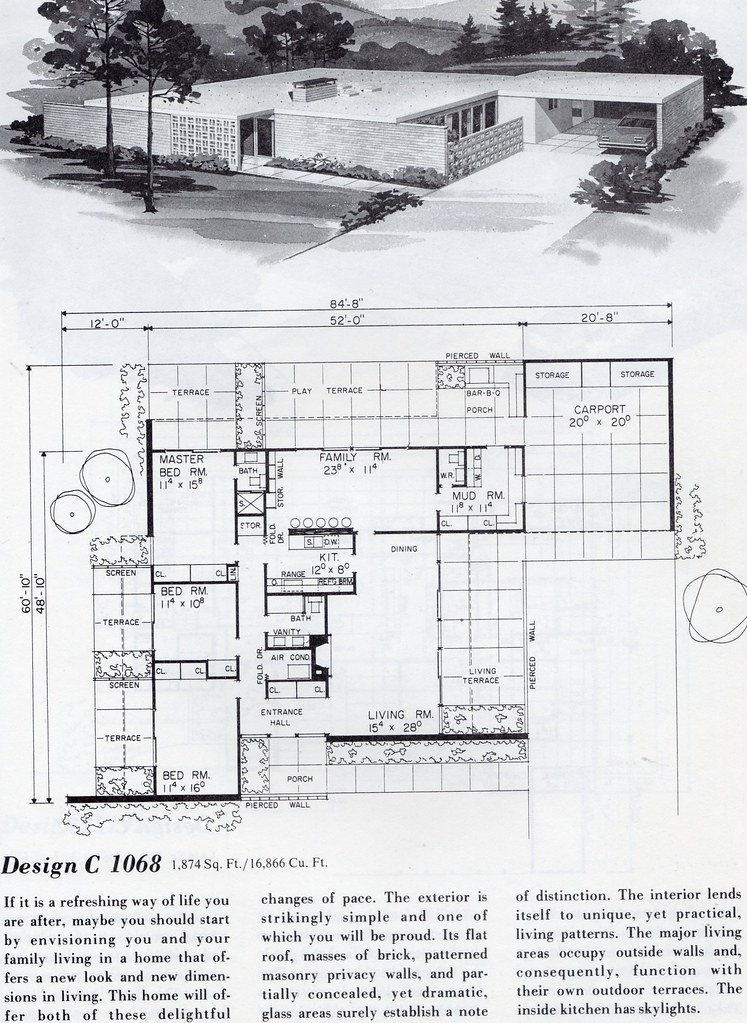
PDF is the most common file format used to share and print architectural blueprints. It is platform-independent, preserves visual fidelity, and is easy to transmit electronically. But printing a PDF at large format introduces challenges that do not exist when viewing it on screen — scale accuracy, lineweight reproduction, and media selection all require attention.

At RK Reprographics, PDF-to-blueprint printing is our bread and butter. We receive architectural PDFs from hundreds of firms and deliver precisely scaled, sharp plan sets every day. Here is how to make sure your PDFs print perfectly.
PDF to blueprint printing: Our PDF to blueprint printing service delivers expert results.
Why Scale Accuracy Matters
Architectural PDFs are typically created at a specific scale — 1/4″ = 1′-0″ is common for floor plans, 1/8″ = 1′-0″ for site plans. When the PDF is printed at full size on the correct sheet (Arch D, Arch E, etc.), a scale ruler should produce accurate measurements directly from the paper.
If the PDF is inadvertently scaled to fit the paper — a default setting in many print dialogs — every dimension on the page will be wrong. We verify scale on every job by checking known dimensions against the printed output before releasing a batch.
How to Set Up Your PDF for Printing
Match Page Size to Sheet Size – When plotting from CAD, set the PDF page size to match your intended output — 24″ x 36″ for Arch D, 36″ x 48″ for Arch E. This ensures the PDF and the physical sheet are the same size.
Disable “Fit to Page” – When printing from Acrobat, Bluebeam, or any PDF viewer, set the scaling option to “Actual Size” or 100%. Never use “Fit” or “Shrink to Fit” for construction documents.
Embed All Fonts – Non-embedded fonts may be substituted on the print system, causing text to shift or resize. Embedding prevents this.
Use Vector Output – Plot to PDF as vector content rather than rasterizing. Vector output remains sharp at any print size, while rasterized PDFs can appear soft or pixelated.
Printing PDFs on Different Media
The media you choose affects the look, feel, and durability of the final print.
20 lb Bond – Standard paper for everyday plan sets. Affordable, easy to fold, and suitable for office use.
24 lb Bond – Slightly heavier paper that resists curling. A good upgrade for plans that will be handled frequently.
Vellum – Translucent paper for overlay comparisons and redline markup.
Mylar – Durable polyester film for field sets exposed to weather and rough handling.
Color vs. Monochrome PDF Printing
Many architectural PDFs now include color — discipline-coded layers, colored annotations, and rendered views. We produce both monochrome and full-color output and can mix color and black-and-white sheets within a single set based on your specifications.
If your PDF contains color elements but you want a black-and-white print, let us know and we will convert to grayscale or pure monochrome before printing to keep costs down.
Half-Size Prints from Full-Size PDFs
Many project teams order both full-size and half-size sets from the same PDF. We handle the scaling in-house, reducing full-size Arch D sheets to 11″ x 17″ or Arch E sheets to 18″ x 24″. Before printing, we verify that text and fine detail remain legible at the reduced size.
Submitting PDFs to RK Reprographics
You can upload PDFs through our web portal, send them by email for smaller sets, or share a cloud link for large file packages. Include your specifications — quantity, media, color or mono, fold style, and delivery address — and we will take it from there. Our team reviews every file before printing and will contact you if we spot any issues.
Frequently Asked Questions
Why do my prints not measure correctly with a scale ruler?
The most common cause is that the PDF was printed with “Fit to Page” enabled, which shrinks or enlarges the content to fit the paper. Always print at “Actual Size” or 100% scaling. If the issue persists, the source PDF may have been created at an incorrect page size.
Can I print a multi-page PDF as a full blueprint set?
Absolutely. We routinely print multi-page PDFs as complete plan sets — each page becomes one sheet. Just upload the file and specify quantity, media, and finishing preferences.
What is the maximum file size you accept?
Our upload portal handles files up to several gigabytes. For extremely large drawing sets, we recommend compressing the PDF or splitting it into volumes before uploading.
PDF as the Universal Blueprint Format
PDF has become the standard format for blueprint distribution because it reliably preserves the document’s appearance across all platforms and devices. When you export a drawing to PDF, you’re creating a fixed representation that maintains fonts, line weights, colors, and page geometry exactly as intended — regardless of what CAD software the recipient has installed.
From our perspective at RK Reprographics, PDF is ideal because it tells us exactly how your drawing should print. We can see the page size, verify that all text is embedded and readable, and confirm that line weights are appropriate for large-format output. This consistency is why most construction firms have standardized on PDF for drawing distribution.
Converting Different File Types to Print-Ready PDFs
Many firms work with mixed sources of drawings — some are native CAD files, others are scanned blueprints or PDFs created from various applications. Converting all of these to print-ready format requires understanding each source’s characteristics.
Native CAD files (DWG, DXF, RVT) export to PDF with embedded vector data, ensuring sharp text and crisp lines at any scale. Scanned blueprints are raster images that need appropriate resolution — typically 150-300 DPI for printing. If a scanned drawing is too low resolution, printing it larger may result in fuzzy or pixelated output.
We’ve developed workflows to handle each of these scenarios. For CAD-originated PDFs, we verify that all fonts and graphics rendered correctly during export. For scanned documents, we check resolution and recommend rescanning if quality isn’t sufficient for the intended print size.
Quality Assurance for PDF Printing
Before printing any PDF, we perform several quality checks. We verify the PDF structure (ensuring all required elements are present and properly layered), confirm page dimensions match your specifications, test color profiles, and sample print on standard media to catch any potential issues.
This preflight process takes minutes but can prevent costly mistakes. We’ve caught problems ranging from missing drawing titles (exported in a hidden layer) to incorrect page sizes (which would cause scaling errors) to color profile mismatches (which affect how colors render on paper).
Best Practices When Exporting to PDF from CAD
Use your CAD platform’s dedicated print-to-PDF function rather than general PDF export
Embed all fonts to ensure text renders consistently
Set your PDF export scale to match your intended print scale
Include all layers needed for printing; hide construction geometry and guides
Create a separate print layout that’s optimized for PDF export
Test print a sample page at your intended size before processing full sets
Keep the original CAD file — you may need to re-export with different settings
Many CAD users don’t realize that export settings significantly impact final print quality. Spending a few minutes to optimize your PDF export settings ensures that every print job produces professional, readable results.
PDF as the Universal Blueprint Format
PDF has become the standard format for blueprint distribution because it reliably preserves the document’s appearance across all platforms and devices. When you export a drawing to PDF, you’re creating a fixed representation that maintains fonts, line weights, colors, and page geometry exactly as intended — regardless of what CAD software the recipient has installed.
From our perspective at RK Reprographics, PDF is ideal because it tells us exactly how your drawing should print. We can see the page size, verify that all text is embedded and readable, and confirm that line weights are appropriate for large-format output. This consistency is why most construction firms have standardized on PDF for drawing distribution.
Converting Different File Types to Print-Ready PDFs
Many firms work with mixed sources of drawings — some are native CAD files, others are scanned blueprints or PDFs created from various applications. Converting all of these to print-ready format requires understanding each source’s characteristics.
Native CAD files (DWG, DXF, RVT) export to PDF with embedded vector data, ensuring sharp text and crisp lines at any scale. Scanned blueprints are raster images that need appropriate resolution — typically 150-300 DPI for printing. If a scanned drawing is too low resolution, printing it larger may result in fuzzy or pixelated output.
We’ve developed workflows to handle each of these scenarios. For CAD-originated PDFs, we verify that all fonts and graphics rendered correctly during export. For scanned documents, we check resolution and recommend rescanning if quality isn’t sufficient for the intended print size.
Quality Assurance for PDF Printing
Before printing any PDF, we perform several quality checks. We verify the PDF structure (ensuring all required elements are present and properly layered), confirm page dimensions match your specifications, test color profiles, and sample print on standard media to catch any potential issues.
This preflight process takes minutes but can prevent costly mistakes. We’ve caught problems ranging from missing drawing titles (exported in a hidden layer) to incorrect page sizes (which would cause scaling errors) to color profile mismatches (which affect how colors render on paper).
Common PDF Export Issues and Solutions
Teams new to PDF export often encounter predictable problems. Text that’s too small results from incorrect scale settings during export. Fonts may appear to change or “fatten” if they’re not embedded. Color lines may not render if the color profile isn’t calibrated. Missing views or layers occur when visibility settings weren’t checked before exporting.
These issues are entirely preventable with proper preparation. Creating a dedicated PDF export template in your CAD software — with correct scale, layer visibility, font embedding, and color profile settings — eliminates most problems. Spend 30 minutes setting up a proper export workflow, then use it consistently for all projects.
Best Practices When Exporting to PDF from CAD
Use your CAD platform’s dedicated print-to-PDF function rather than general PDF export
Embed all fonts to ensure text renders consistently
Set your PDF export scale to match your intended print scale
Include all layers needed for printing; hide construction geometry and guides
Create a separate print layout that’s optimized for PDF export
Test print a sample page at your intended size before processing full sets
Keep the original CAD file — you may need to re-export with different settings
Document your export settings so others on your team can replicate them
Include current date and revision on every exported PDF
Many CAD users don’t realize that export settings significantly impact final print quality. Spending a few minutes to optimize your PDF export settings ensures that every print job produces professional, readable results.
Why PDF Remains Superior to Native CAD Formats
More PDF to blueprint printing content.
Some teams ask whether they can simply print DWG or RVT files directly. While technically possible, PDFs are superior because they’re finalized — fonts won’t shift, line weights won’t change, and scale is locked. PDF creation forces you to make deliberate choices about what prints and how it prints.
Additionally, PDFs are safer to distribute. A PDF can be viewed on any device and doesn’t expose your CAD intellectual property. You can restrict printing or copying if necessary. For shared documents with multiple consultants, PDF is clearly the better choice. See our large format printing or contact us. Resources at printing.org.